01
Bring your newsletter
Import a Canva Email or Beefree export, a custom-coded Mailchimp template, or choose a ready-made design. We host images included in an imported ZIP.
Clinic newsletters and updates
Bring a design from Canva Email or your favourite email builder. Reuse your saved contacts, send or schedule each edition, and let us handle the unsubscribe links. Calendly audiences are supported too.
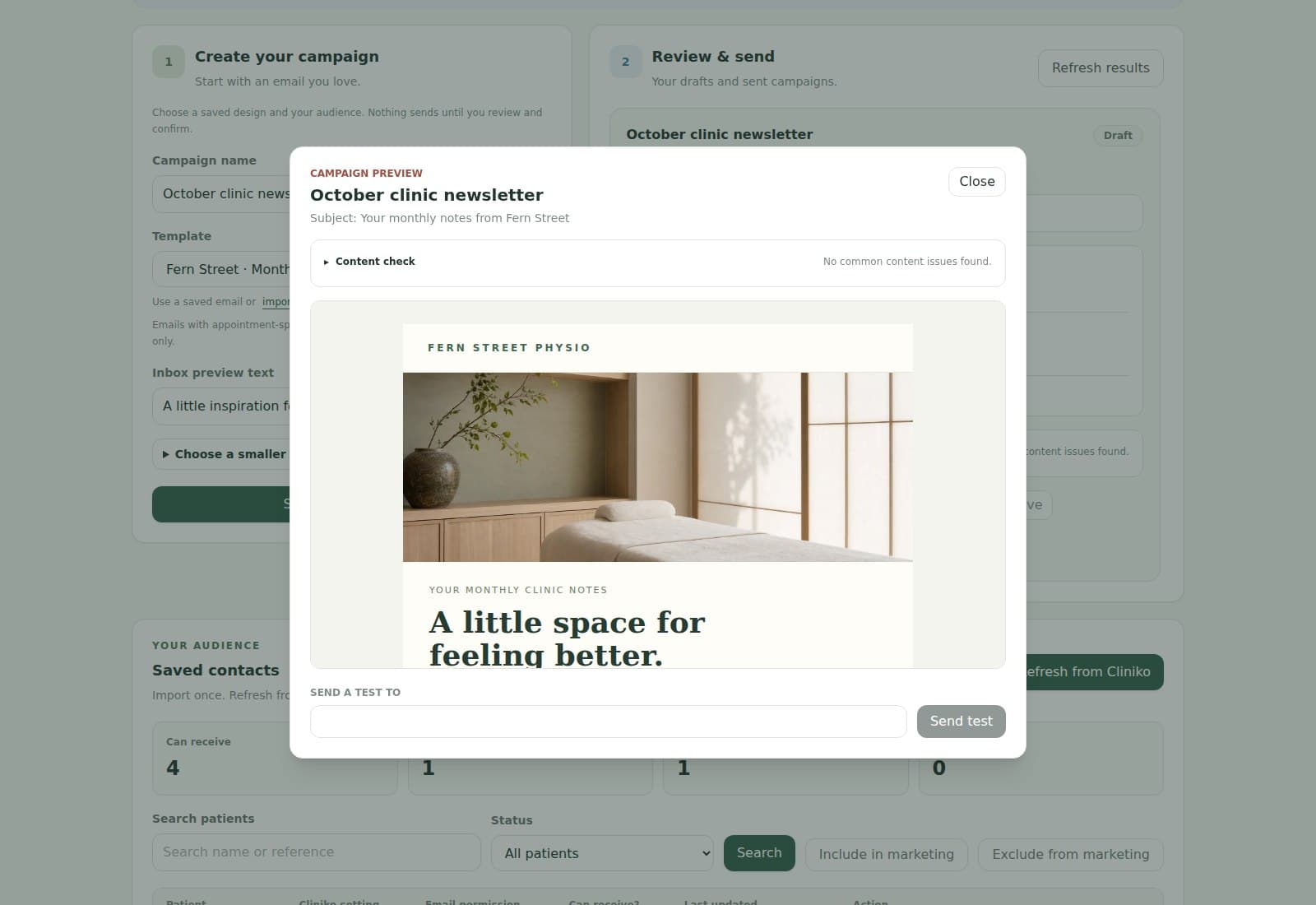
A clear campaign workflow
01
Import a Canva Email or Beefree export, a custom-coded Mailchimp template, or choose a ready-made design. We host images included in an imported ZIP.
02
Reuse your saved contacts, refresh any changed details and choose the group this edition is for. Review who has permission to receive it.
03
Check the preview and content suggestions, send yourself a test, then send now or choose a date. Prepare your next monthly edition whenever it suits you.
04
See delivery, opens, clicks and unsubscribes in the campaign report, with an overview of your emails in Monitoring.
Choose your audience source
Cliniko campaigns
Sync eligible patients, filter by location, practitioner, appointment type, medical alert, or appointment activity, and send campaign opt-outs back to Cliniko. Permission is checked again before each email sends.
Start with ClinikoCalendly campaigns
Calendly does not supply a marketing preference. Invitees stay excluded until you record how they agreed or confirm that a selected event type already collects permission on its form.
Start with CalendlyUseful audience filters
Refresh the matching audience before saving a draft so you can see which patients or invitees fit the current filters.
Checks before sending
Review your audience and message before sending. We help with permission checks, unsubscribe links and useful content suggestions. Your clinic remains responsible for having permission and choosing appropriate content.
Read acceptable useSensible campaign ideas
Good to know
Yes. Start with Email on Canva's homepage and check Share → Download offers HTML and images before editing. Some Email Newsletter templates are image or PDF designs; adapt their content in a new Canva Email if there is no HTML option. Upload the email ZIP through Bring your design in Emails; we host the included images. Beefree, custom-coded Mailchimp exports and ready-made clinic emails are options too.
You do not need to make one. We add a working unsubscribe link to every campaign, including imported designs. Opt-outs stop future marketing emails and are sent back to Cliniko. The local opt-out still applies if Cliniko is temporarily unavailable. Appointment-related emails use their relevant communication preferences.
Yes. Create each edition, choose the audience and schedule its send date. Your designs and contacts stay saved, so the next month's newsletter starts with what you already have.
It offers useful suggestions, including unfinished links and designs with very little readable text. It does not predict spam placement. Recipient permission, your sending domain and past sending activity also matter. Delivery reporting confirms acceptance by the receiving server, not placement in the inbox.
No. Imported contacts and their permission status stay saved in your MyHealthFollowup audience. Refresh from Cliniko or Calendly when you want new contacts or updated details. Existing unsubscribes and blocked addresses remain excluded when you refresh.
Yes. Use your booking-platform filters to choose a relevant group, then review the matching audience before sending. Only eligible contacts with recorded marketing permission are included. You can send a test, send now, or schedule for later.
Automations and Campaigns together