Canva Email
Start with Email on Canva's homepage. Before editing, check Share → Download offers HTML and images. Upload that ZIP here; we take care of the included images.
Canva export guideBring your design
Bring an email from Canva, Mailchimp or Beefree, then add the personal details and timing in MyHealthFollowup. Prefer a head start? Choose from more than 100 ready-made emails.
See how to import your designStart with Email on Canva's homepage. Before editing, check Share → Download offers HTML and images. Upload that ZIP here; we take care of the included images.
Canva export guideExport a saved custom-coded template as HTML. Mailchimp does not offer HTML export for its drag-and-drop emails.
Mailchimp export guideExport your email as HTML or an HTML-and-images ZIP, then upload it to MyHealthFollowup.
Beefree export guide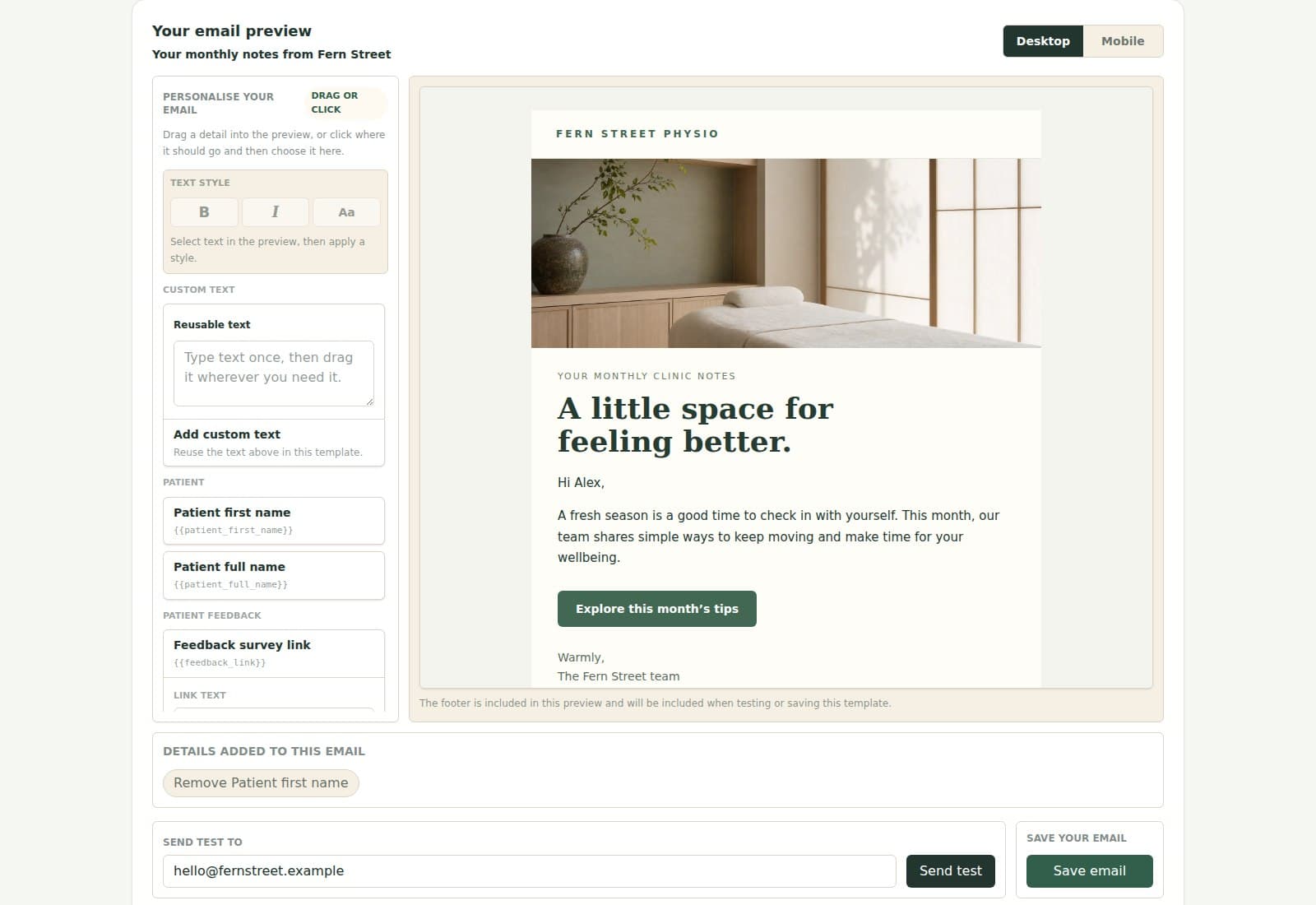
Ready-made emails are included too
Start with a reminder, thank-you, aftercare note or recall. Adjust the words, colours and links, then preview it with your booking details before sending a test.
Want to build from scratch here? Our optional email designer is available too.
Email design examples
Nova
SKIN STUDIO / QUIET CARE
14 MAY 2026
BRISBANE

APPOINTMENT CONFIRMED
Hello Alex. Your first visit with Taylor is confirmed. Everything you need for a calm arrival is below.
When
Thursday 14 May, 11:30am
Treatment
First visit
Practitioner
Taylor Morgan
Studio
45 James Street, Brisbane
BEFORE WE MEET
Come as you are.
We will begin with a thoughtful consultation and shape the visit around what your skin needs.
Complete your form →NOVA SKIN STUDIO
WITH CARE / BRISBANE
Cliniko
Use your design for reminders, aftercare, recalls, patient feedback surveys and newsletters. Link a patient's Cliniko form when your email includes a form link.
Explore Cliniko templatesCalendly
Build confirmations, preparation, reminders, reschedule and cancellation updates, follow-ups, and consent-aware campaigns.
Explore Calendly templatesCommon questions
No. Design in a tool you already know and upload its email export, or choose a ready-made email here. You do not need to write code. Our own editor is also available if you prefer to start here.
Yes. For Canva, create an Email design and download the HTML-and-images ZIP. Upload the ZIP directly; there is no need to unpack it. Beefree email exports work too. Mailchimp supports HTML export for saved custom-coded templates, not its drag-and-drop emails. A Canva share link, PNG or PDF is not an email export.
Some templates called Email Newsletter are image or PDF designs, so they cannot be imported directly. Start with Email on Canva's homepage and, before editing, check that Share → Download offers HTML and images. If your existing design has no HTML option, use its words and images to create a new Canva Email, then download that email's ZIP.
Yes. When your email ZIP includes supported images, we host them and update the email links for you. Images already linked to a website keep those links. Use brand artwork and other images suitable for anyone with the image link to view.
Yes. Open the saved email and choose Update design to preview a new export before saving. The dashboard shows which automations use it. Choose Save a copy if you want a separate email instead.
Templates are included in every plan